Getting started
Oscine is a local music player. It indexes folders on your disk and plays those files. There is no account and no streaming catalog.
Install
Download the Windows installer, the Linux AppImage, or the .deb. Launch Oscine.
First run
The first time you open Oscine, a short wizard walks you through setup:
- Add your music — point Oscine at a folder on this computer. This is the one step it waits for; you can add more folders later.
- How it looks — light, dark, or follow the system, and which built-in theme. Changes apply as you make them.
- Sound — where audio is sent, and whether to level volume across tracks with ReplayGain.
- Online lookups — off by default, and fine to leave off. Turned on, Oscine can fetch artist info, find lyrics, look up CDs you rip, and browse the podcast catalog; left off, everything stays on this machine.
- Ready — indexing runs in the background, so you can finish whenever you like and start listening while it works.
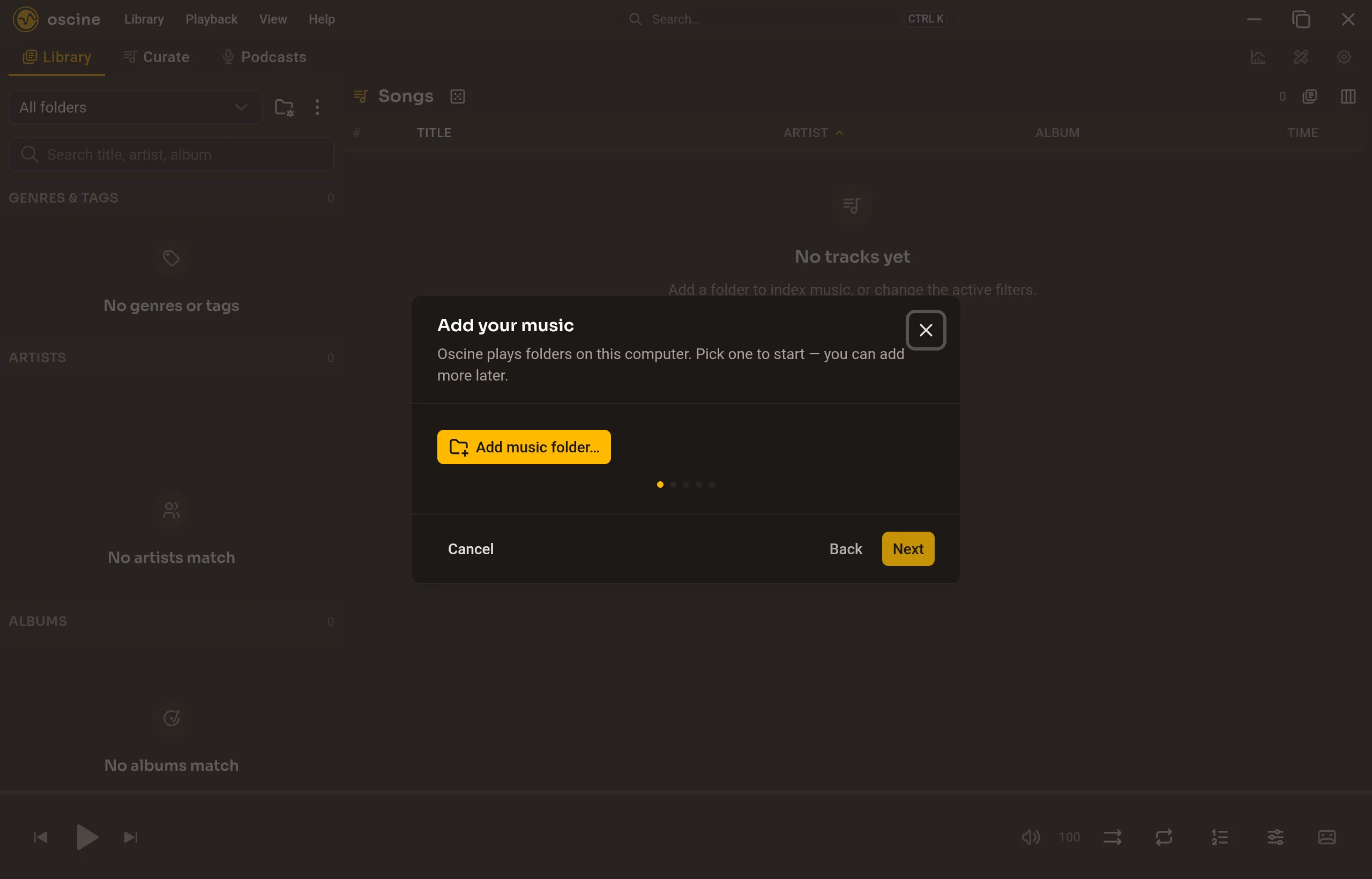
Nothing here is permanent. You can change any of it later in Settings, and re-run the whole wizard from there.
Add a library folder
To add more music later, use Library → Add music folder… in the title bar menu, or Add folder… in the Library sidebar. Oscine scans the folder, reads tags, and builds artwork thumbnails. You can add as many folders as you like.
A watcher keeps the library in step when you add or remove files outside the app. Turn that off in Settings if you would rather rescan by hand — the same Library menu rescans one folder or all of them on demand.
Find something and play it
The Library tab is artist, album, and song. Double-click a song to play it (that gesture is configurable). Double-click an artist or album to play all of it.
Ctrl+K opens the command palette from anywhere: views, albums, artists, playlists, tracks, subscribed shows, and settings.
The Stage and Zen mode
Now Playing is the Stage: one record, artwork as large as the window allows, and no sidebar to browse. It is where you land when you want to sit with what is playing. When a track has lyrics, they show up beside the artwork, and synced lyrics scroll along with the song. Oscine reads them from a .lrc file next to the track or from the file's own tags.
Zen mode takes that further. Press F11 (or Ctrl+Shift+Z) and Oscine goes fullscreen, dropping the title bar, the tabs, and the player bar — just the Stage, with the transport on it. Press F11 or Esc to come back. It is the mode for a listening session, or for a screen across the room.
Optional, later
- Online lookups (Settings → Network) fetch artist biographies and relations for the Tunedeck, find lyrics on LRCLIB for the track that's playing, match CDs on MusicBrainz and fetch their covers when you rip, and let Podcast Discover browse Apple's catalog. Off by default.
- Last.fm and ListenBrainz — scrobble to either or both. Last.fm signs you in through your browser; ListenBrainz takes a user token you paste from your account. See Stats for what gets sent.
- Podcasts if you want shows next to the library. They download, then play, and are not mixed into your music list.
Updating
Open Settings → About and click Check for updates. With the Windows installer or the AppImage, Oscine downloads the new version and installs it when you restart. The .deb can check too, but it cannot replace itself: it points you to the new release, and you install that package the same way you installed the first one. Oscine only checks when you ask.
In-app updates arrived in 1.0.3. If you are on an earlier version, install the latest build from the download page once, and updates work from Settings after that.