Tools: ripping CDs
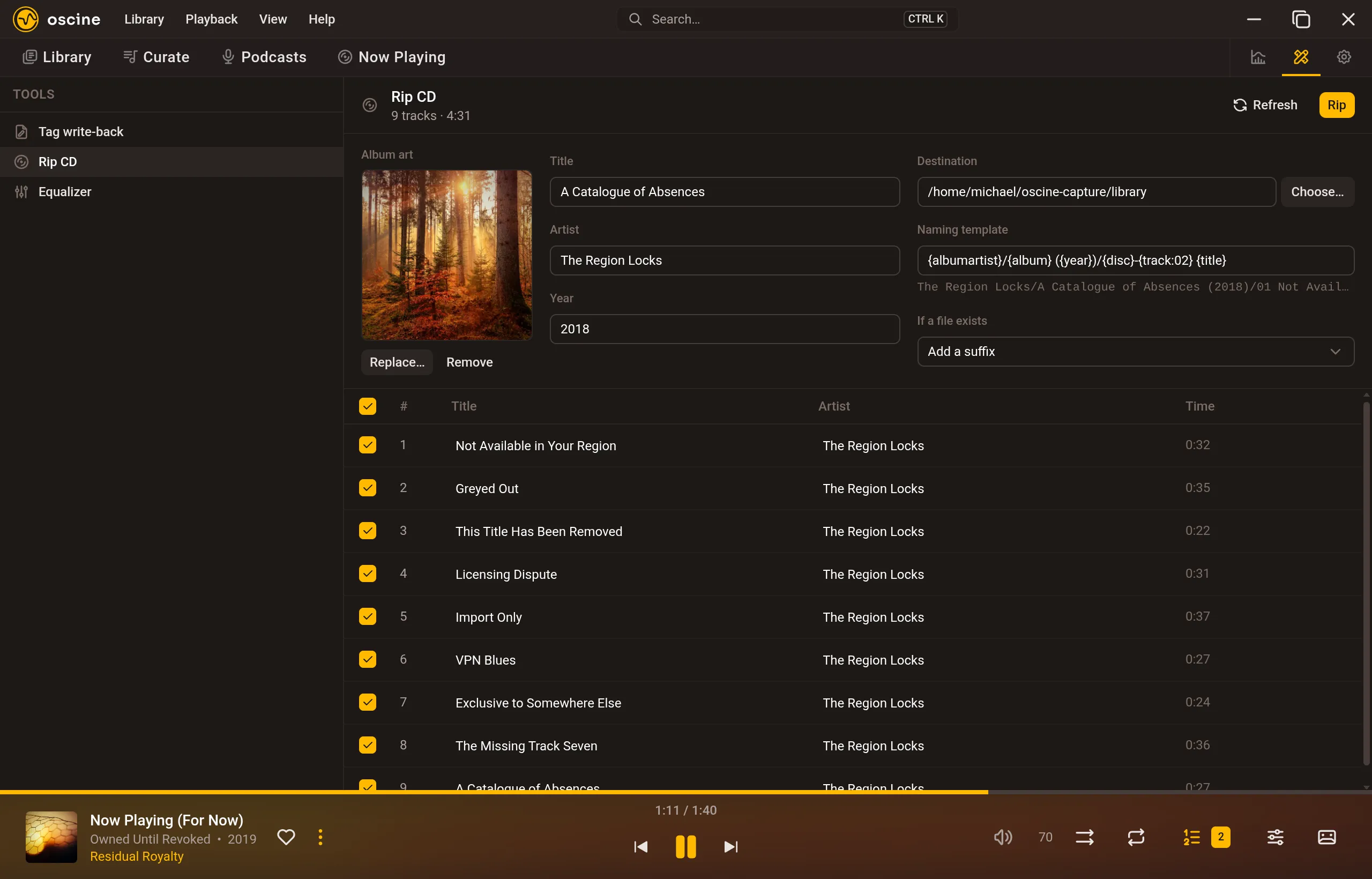
Oscine 1.1 can rip CDs on Windows and Linux. Open Tools → Rip CD with a disc in the drive, and a few moments later you'll see the album ready to go. Each track is saved as FLAC, tagged, and added to your library as soon as it's done.
Finding the album
When you put a disc in, Oscine reads its table of contents and works out the disc's MusicBrainz ID. With online lookups turned on, it looks that ID up on MusicBrainz. A lot of albums have several pressings, reissues, or regional releases, so if more than one matches, they're listed under Matching releases and you choose the right one with Use this release. Oscine never picks for you.
If the disc isn't on MusicBrainz, or online lookups are off, Oscine falls back to any CD-Text stored on the disc. You can also choose Enter titles yourself and fill everything in by hand.
Either way, the album, album artist, year, and every track title stay editable right up until you rip. Untick a track to skip it, or use Include every track to bring them all back.
Album art
Once you've picked a release, Oscine fetches its front cover from the Cover Art Archive and shows it under Album art. Keep it, choose your own image with Choose album art, or remove it altogether. The cover is embedded in every track.
Where the files go
Rips always land inside one of your library folders, which you pick under Destination. The Naming template decides the folders and file names, and the default looks like this:
{albumartist}/{album} ({year})/{disc}-{track:02} {title}
A preview under the template shows exactly what the paths will be. The disc number drops out on its own for single-disc albums, and any characters that aren't allowed in file names are cleaned up for both Windows and Linux. If a file exists decides what happens when a file is already there: skip it, overwrite it, or save the new one alongside it with a number added.
Ripping
Hit Rip and Oscine works through the disc one track at a time, showing progress for each track and for the whole album. Cancel stops it almost right away, not just between tracks. When it's finished, Show in library takes you straight to the new album.
For extra peace of mind, turn on Verify CD rips in Settings. Oscine then reads every track twice and flags any track where the two reads don't match. It takes about twice as long.
If a rip gets interrupted, whether you closed the app or the power went out, Oscine remembers where it stopped and offers to Resume. Just make sure the same disc is in the drive.